
Supported by







Navigator™ makes setup simple and keeps you 100% compliant with AI-guided workflows and on-demand experts.

Saudi Company Setup
Launch with confidence. Guided DIY workflows help you register correctly, faster, and with fewer errors.
Launch Company

Compliance OS
Never risk penalties or suspensions — AI-guided workflows, smart alerts, and automated reminders keep you compliant.
Ensure compliance

Navigator™
Navigator™ Platform combines Setup, Compliance OS, AI Copilot, and Dashboard — the all-in-one system to launch, run, and stay 100% compliant in Saudi.
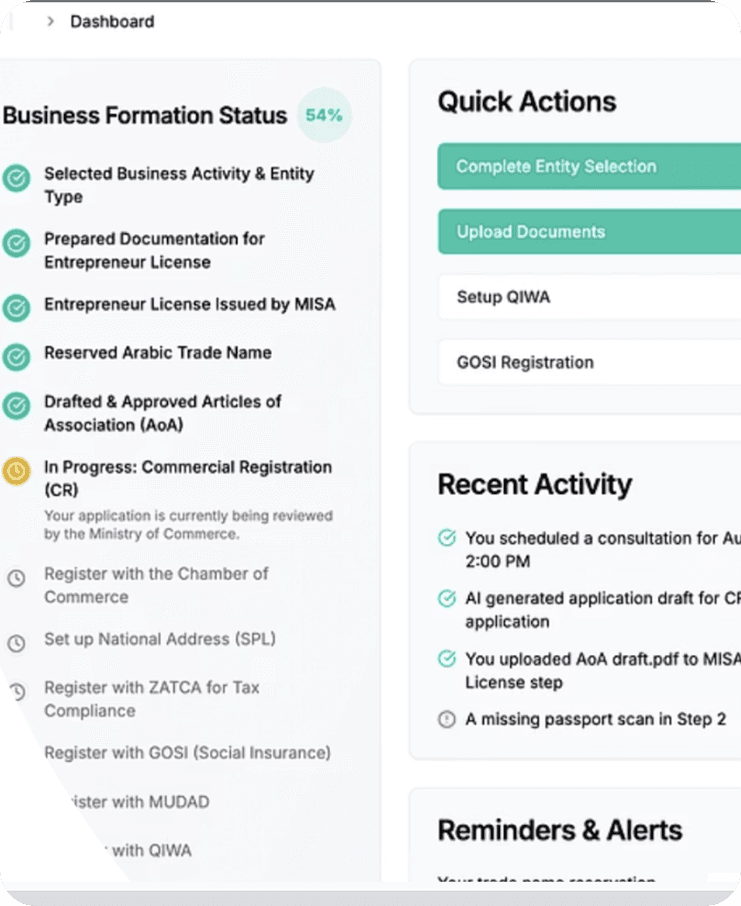

Company Health Dashboard
Track every license, deadline, and compliance risk in real time — one dashboard to protect your CR and give you peace of mind.
View your checklist

AI Copilot & Knowledge Hub
Get instant answers to compliance questions, guided workflows, and ready-to-use templates — no more guesswork, no costly mistakes.
Ask the Copilot
Comparison
Why Navigate Saudi?
We don't just help you enter Saudi — we set you up to win. See how Navigate Saudi compares to going it alone.
With Navigator™
Join Waitlist
Without Navigator™
Protect my Business
Resources
Powerful resources to help you succeed in the Saudi market faster.





Built for Founders, by Founders




FAQs
How do I draw Frames?
abc
How do I add images?
To add an image, select any Frame, and either double-click on it, or go to the Fill property. In the Fill property, switch to the image icon. Here, you can upload images.
How do I add videos?
To add a video to your site, click the “Insert” button and navigate to the “Media” section. Then, drag and drop a video component onto the Canvas.
How do I add videos?
To add a video to your site, click the “Insert” button and navigate to the “Media” section. Then, drag and drop a video component onto the Canvas.
How do I add videos?
To add a video to your site, click the “Insert” button and navigate to the “Media” section. Then, drag and drop a video component onto the Canvas.